
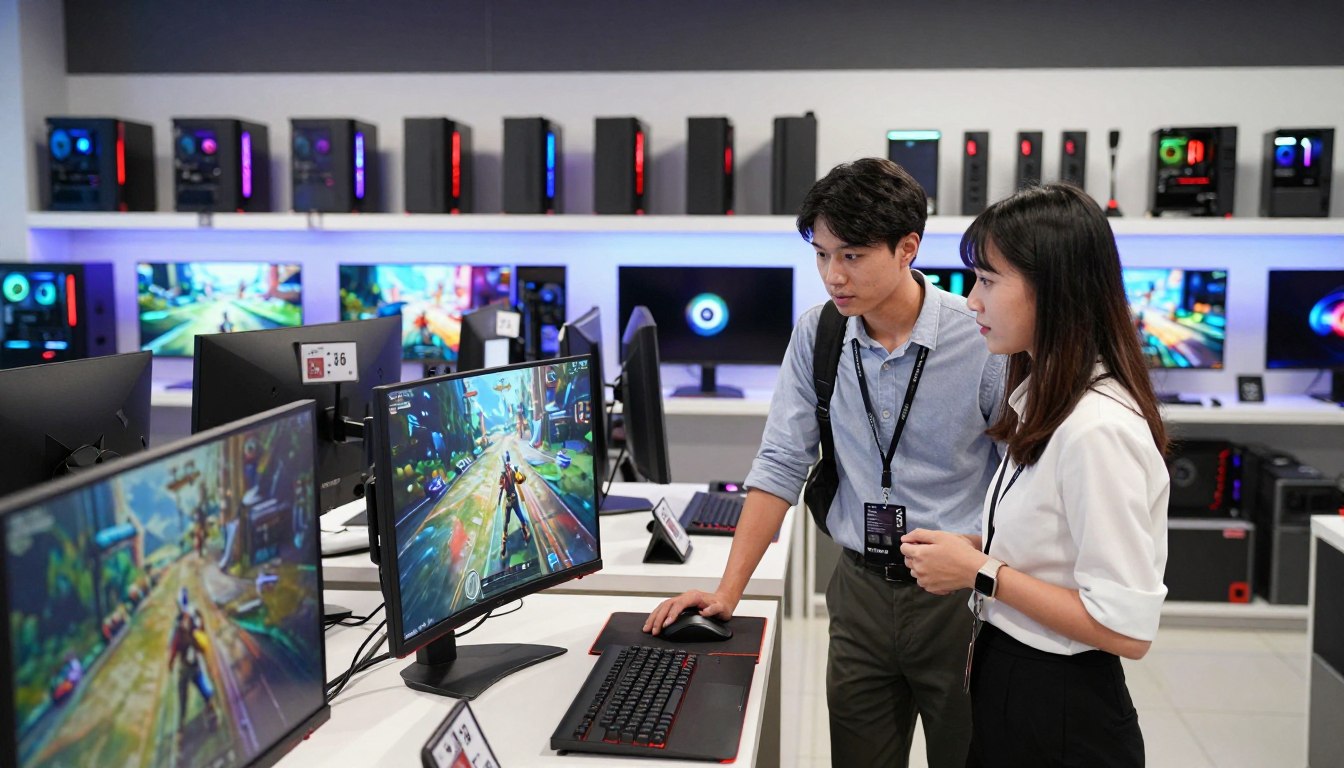
A sensible Singapore PC budget starts with the games you play and the resolution of your monitor, not with a flashy parts list. Screen resolution, game type, and desired frame rate all shape the performance you need. Frame rate is the number of images a PC displays each second, measured in frames per second (FPS).
This guide gives you a direct price range and practical ways to compare configurations, so you can spend on parts that fit your needs. A higher price does not automatically mean a better choice for your games, your work, or the screen on your desk. Start with what you want to play, then set a budget around the performance you’ll actually use.
Before comparing parts lists, note your monitor resolution and how smoothly you want games to run. Those details help you tell useful performance upgrades from costly extras. Write down your monitor resolution and three most-played games before comparing configurations.
Key Takeaways
- Choose a budget around your monitor resolution and favorite games.
- Compare complete system prices, not single-component starting prices.
- For most players, a mid-range 1440p configuration offers room to grow.
- Check exact component models, memory, and SSD capacity on each listing.
- Review delivery, warranty, and support terms before you pay.
How Much Is a Gaming PC in Singapore?
A gaming PC in Singapore ranges from about SGD $1,200 for an entry build to $8,000 or more for a premium system. The indicative 2026 range is SGD $1,200-$8,000+, with the right tier shaped by the performance and workload you want.
These figures describe a complete desktop, not a GPU or a list of component-only prices. Component choice and availability can change the price of a configuration, even when two listings use the same tier label. Compare like with like: a complete build includes the other parts needed for a working system.
| Tier | Indicative price in SGD | Typical use |
|---|---|---|
| Entry-level | $1,200-$1,600 | Esports and 1080p |
| Mid-range | $1,800-$2,800 | High-refresh 1440p and creation |
| High-end | $3,500-$5,500 | 4K and demanding creative work |
| Premium | $5,500-$8,000+ | Flagship gaming and heavy workloads |
A cheap PC in Singapore below SGD $1,200 generally means considering older, refurbished, or second-hand hardware, or accepting a performance compromise. That route can suit a limited budget, but the age and condition of used parts matter. A low advertised price is not enough to judge the value of a whole desktop.
Compare the complete system price, not a component-only price or an advertised starting figure.
Check what the listed amount includes, such as the installed memory, storage, and operating system. Two prices can look close while covering different configurations. Keep the intended use beside each listing so a lower price does not distract you from a weaker fit.
Related Posts:


For a tight budget, an entry-level system is the clearest starting point for esports and 1080p play. Buyers who want higher refresh rates, creation tools, or more demanding games will need to compare stronger tiers. Compare the complete system price, not just the GPU or advertised starting price.
What Can an Entry-Level Budget Buy?
An entry-level build is a practical match for esports and 1080p gaming when its parts are balanced rather than chosen around one headline component. Balanced parts help prevent a strong processor from being paired with an unsuitable graphics card, or vice versa. More demanding games may need reduced graphics settings.
Many entry configurations start with 16GB of memory and a 512GB-1TB SSD. Common processor pairings include an AMD Ryzen 5 7600 or an Intel Core i5-14400F, with 16GB DDR5 and a 1TB NVMe SSD. The exact balance varies between listings, so inspect the complete parts list.
Three baseline checks make a short parts list easier to judge:
- Processor generation and exact model
- Dual-channel memory configuration
- SSD capacity
That memory starting point can be upgraded later if the motherboard has available room and supports the compatible memory kit. A 512GB drive also leaves less room for a collection of large games than a 1TB drive. Both choices can lower an initial build cost, but they affect day-to-day convenience.
Spend a moment checking the precise processor model, rather than relying on a family name such as “Core i5.” Similarly, dual-channel memory uses two compatible sticks, which can matter to performance. Check whether the quoted 16GB is one stick or a matched two-stick kit before buying.
When Is a Mid-Range Build Worth the Extra Spend?
A mid-range build makes sense when you want high-refresh 1440p gaming and enough headroom for streaming or editing. For mixed use, stronger hardware can keep games responsive while other demanding tasks run in the background. That makes the extra spend useful when those activities are part of your routine.
A stronger CPU, 32GB of memory, and enough SSD space work together as a more flexible system. Mid-range configurations commonly pair an AMD Ryzen 7 7800X3D or Intel Core i7-14700KF with 32GB DDR5 and a 1TB or 2TB NVMe SSD. The exact parts still need to suit your particular games and programs.
High-refresh gaming benefits from a system that can keep pace with a fast monitor. Streaming adds another task while you play, and light video editing can use both processor resources and memory. A system that handles these jobs comfortably may feel more useful than a configuration focused on one game alone.
For creative work, the extra SSD space can also hold projects alongside games. Storage capacity and memory do different jobs: a larger drive keeps more files installed, while extra memory helps active programs run together. Consider which of these needs you encounter most often.
A mid-range machine may handle less demanding 4K gaming, but that is not the same target as maximum-settings 4K play. Aiming for the latter calls for a different level of graphics performance. Match the extra spend to a real workload you expect to use, not to a speculative future upgrade.
What Does a High-End or Premium Build Add?
High-end spending is easiest to justify when you want demanding 4K play, professional creative work, or several heavy tasks running together. That extra headroom can help a system handle more demanding games and workloads without making the most powerful parts the right choice for everyone.
High-end systems commonly pair an AMD Ryzen 7 9800X3D or Intel Core Ultra 7 265KF with an RTX 5080 and 32GB-64GB DDR5. A premium configuration can use an AMD Ryzen 9 9900X or 9950X3D, or an Intel Core Ultra 9 285K, with an RTX 5090 and 64GB DDR5. Premium builds commonly include 2TB-4TB of SSD storage.
The distinction is partly about the work you expect to do. A high-end desktop can target 4K gaming and creative work. A premium flagship can suit intensive workloads that keep several demanding programs active or rely on top-tier graphics performance.
Higher-power parts also affect the rest of the build. Cooling needs to handle the heat produced under load, the case needs room for the parts, and the power supply must suit the full system. Storage matters too if large projects and games need to stay installed together.
It is easy to be drawn to a striking case or showcase lighting. Those features may be worthwhile if you like them, but they cannot replace the GPU and performance fit your workload requires. Ask for the exact power supply and cooling models, not only a wattage or cooler-size label.
Which GPU Fits 1080p, 1440p, or 4K Gaming?
For most players who want a flexible balance of image quality and smooth play, a mid-range 1440p build is the best place to start. It gives you room to target clear visuals and high refresh rates without automatically paying for flagship graphics hardware.
Choose the GPU tier around the resolution you actually play at. Budget-conscious esports players focused on 1080p can look at an entry GPU-class build. A high-end GPU-class system suits 4K play or demanding creative workloads.
The Best Gaming PC in Singapore by Resolution
A 1440p-focused mid-range desktop is the most flexible choice for many players seeking high-refresh gaming. It offers a useful middle ground for players who want a sharper image than 1080p and do not need a flagship card. The best gaming PC in Singapore for your setup still depends on your monitor and chosen games.
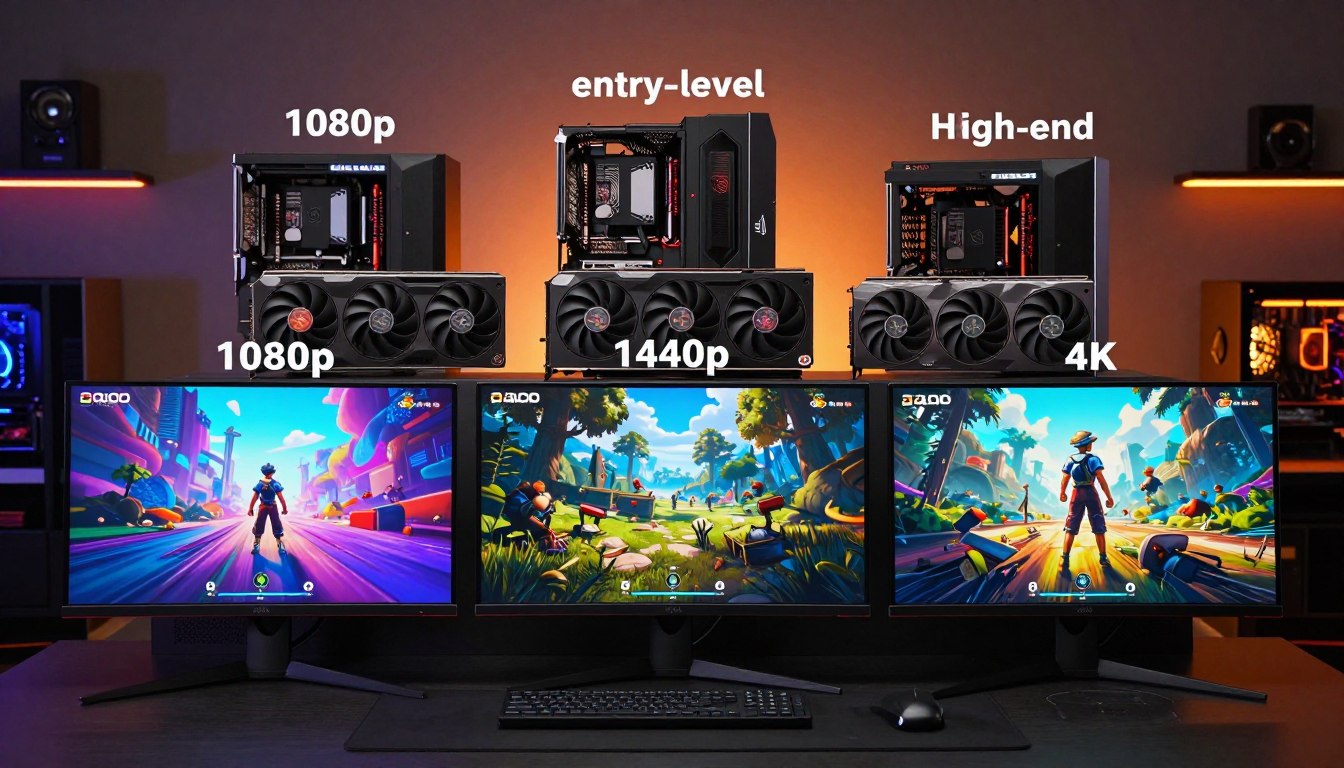
For esports at 1080p, an entry GPU class can keep the budget focused on the games you play. For demanding 4K games or heavy creative tasks, the high-end class offers a stronger target. The key is to avoid paying for graphics capacity your screen and workload will not use.
GPU Classes from 1080p to 4K
| GPU tier | Listed GPU class | Target resolution |
|---|---|---|
| Entry-level | RTX 5060 or RX 7600 class | 1080p |
| Mid-range | RTX 5070 or RTX 5070 Ti | 1080p-1440p |
| High-end | RTX 5080 or RTX 5090 | 1440p-4K |
The resolution and graphics settings affect frame rate, so the same GPU does not guarantee the same experience in every game. A demanding game at high settings can put more load on a card than a lighter esports title. Confirm that the GPU tier matches the resolution you actually play at before paying extra for a flagship card.
Which Components Move the Total Price Most?
The GPU usually has the largest effect on a gaming PC’s component cost, while the other parts determine whether the whole system is balanced. Each component affects the price and use of the final build in a different way.
The GPU typically takes the largest share of gaming-PC spend. A CPU also matters, especially in games or work that rely heavily on processor performance. A good balance helps avoid paying for a fast component that another part cannot support.
The GPU and CPU Set the Performance Level
For gaming, the GPU handles much of the graphics work, while the CPU processes game logic and other tasks. Creative software can place different demands on both. Consider your actual workload when comparing parts, rather than judging the system by one headline model.
Component choices also affect the motherboard, cooling, and power needs. A more powerful GPU may call for a suitable power supply and a case that can fit it. A motherboard must support the selected processor and provide the slots and connections your build needs.
Memory and Storage Change the Everyday Experience
Memory capacity is not the same as SSD capacity. Memory supports programs and game data in active use, while an SSD stores the operating system, games, and other files. A larger SSD does not add memory, and extra memory does not create more room for installed games.
Motherboard slots and supported parts affect future upgrades. The board determines how many memory modules you can install and what kinds of parts it can support. Check its full model and specifications before assuming an upgrade will be simple.
Power, Cooling and the Case Need to Fit
Choose power, cooling, and case clearance to match the selected hardware. A 650W or higher power supply is an important consideration for higher-power systems, but wattage alone does not confirm quality or compatibility.
Typical power-supply pairings are 650W 80+ Bronze for entry systems, 750W-850W 80+ Gold for mid-range, and 850W-1000W 80+ Gold for high-end. Premium configurations commonly pair 1000W-1200W 80+ Platinum or Titanium supplies with their hardware.
Use this five-item checklist to compare a parts list:
- GPU model
- CPU model
- Motherboard model
- PSU wattage and rating
- Cooler and case clearance
Check the PSU model and its connectors against the exact GPU, rather than judging the power supply by wattage alone.
Is a Custom Build Worth More Than a Prebuilt?
A custom build is worth considering when choosing exact parts matters more to you than buying a fixed configuration quickly. More choice can help you match hardware to a particular workload or upgrade plan.
Prebuilt gaming PCs typically carry a 10%-20% premium compared with a custom-build alternative. Treat that as a typical comparison, not a guaranteed saving. The final price depends on the specific parts and what the listed system includes.
| Factor | Custom build | Prebuilt |
|---|---|---|
| Component choice | More scope to choose parts | Fixed listed configuration |
| Price | Custom-build comparison baseline | Typically 10%-20% premium |
| Best fit | Specific performance or upgrade priorities | Convenience and a ready-defined specification |
A custom build suits buyers who want control over individual components. You can prioritize a particular motherboard, SSD size, or case, as long as the parts work together. It can also make sense if you already know which parts matter most for your needs.
A prebuilt offers a defined configuration to compare and buy as a complete system. That can save time if you are comfortable with the listed parts and do not need to pick each component. Read the specification closely, since broad labels do not always identify the exact model.
Either route requires checking exact component models, warranty coverage, and assembly or setup terms. A custom build is not automatically cheaper, and a prebuilt is not automatically a poor value. Compare two systems only after matching their GPU, CPU, memory, storage, and warranty coverage.
How Much RAM Should a Gaming PC Have?
For ordinary gaming, 16GB is a workable baseline, while 32GB is the better target for enthusiast play and demanding multitasking. The baseline can run many games, but it is not the best choice for every current workload.
Choose 32GB for enthusiast gaming and heavier use alongside games. Memory needs can grow when a game, browser, voice chat, and streaming or creative tools run at the same time.
16GB for a Baseline Gaming Setup
At 16GB, a system has a reasonable starting point for ordinary gaming. The amount can suit a player who keeps a limited set of programs open and does not need demanding creative tools. It is still worth considering the games and background tasks you use most.
Memory use does not stop at the game itself. A browser with several tabs, chat software, and recording tools can all use part of the available capacity. That leaves less room for a game than a clean test setup might suggest.
When 32GB or More Makes Sense
Enthusiast gaming and AAA titles with high-resolution textures are good reasons to choose 32GB. The same capacity is recommended for local AI tools and AI PC workloads. If serious photo, video, or design work is part of your week, 32GB-64GB can be a better fit.
More memory can help when several demanding applications stay open together, but it is not a substitute for a suitable GPU or CPU. The right capacity depends on what you run at once and how much room those programs need.
Check that memory is installed as a compatible matched kit and that the motherboard supports the planned capacity.
How Much SSD Storage Is Enough for Gaming?
A 1TB SSD is a sensible minimum for a gaming PC, while 2TB leaves room for a larger rotation of modern games. Storage needs depend on how many large games you keep installed at once.
Modern AAA games commonly take 80GB-150GB, and the largest live-service shooters can exceed 200GB with all content installed. A game library can fill a drive faster than its headline capacity suggests.
Estimate Game Count by SSD Capacity
The estimates below allow about 150GB for Windows and apps, then about 100GB for each modern AAA game installation. Actual games differ in size, so treat these counts as planning estimates rather than exact limits.
| SSD capacity | Estimated large games | Assumptions |
|---|---|---|
| 512GB | 2-3 | About 150GB for Windows and apps; about 100GB per game |
| 1TB | 5-8 | About 150GB for Windows and apps; about 100GB per game |
| 2TB | 15-18 | About 150GB for Windows and apps; about 100GB per game |
| 4TB | 30+ | About 150GB for Windows and apps; about 100GB per game |
Choose Capacity for Your Library
A 500GB-class SSD is restrictive for current gaming. A 512GB drive can work for a very small rotation, but the estimate leaves room for only Windows, apps, and 2-3 large games. You may need to uninstall games often if your library changes.
A 1TB SSD holds an estimated 5-8 large games and is a working minimum for gaming in 2026. A 2TB SSD is enough for many players, with an estimated 15-18 large games under the same assumptions. A 4TB drive suits a large library.
Before choosing, think about whether you keep large games installed between play sessions or remove them after finishing. The more titles you want ready at once, the more useful extra capacity becomes. Leave some unused capacity for updates, saved files, and applications instead of planning to fill every gigabyte.
Will a Nearly Full SSD Slow Down Games?
A nearly full SSD does not automatically make game frame rates fall, but leaving no working space can still cause problems. Frame rates and load times are separate measures of game performance.
Tests found no significant change in average frame rates or 1% lows as drives went from about 50% full to all but 10GB free in Cyberpunk 2077, F1 24, and Horizon Zero Dawn Remastered. The tested game results did not show that a nearly full drive always slows gameplay.
Load times did change in one tested case. Final Fantasy XIV: Dawntrail scene-load times rose by less than 10% as the tested drives filled. Tested 1TB drives that were under 50% full had nearly 10% shorter load times.
Drive behavior can also differ by model. A tested Corsair MP600 1TB had crashes and failures above 60% full, while the tested Corsair MP600 2TB did not show similar instability. The Corsair MP600 test results describe those specific drives, not a rule for every SSD.
A completely full drive can prevent programs from launching. The free space needed depends on the programs you use, so an SSD with no room left may cause trouble outside games even when frame rates remain steady.
Keep free space for the applications you use and check a drive’s health if it behaves abnormally.
What Does Windows 10 Support Mean for a New PC?
A Windows 10 PC can still run, but standard Windows 10 support ended on October 14, 2025. Running is not the same as receiving ongoing security and reliability updates.
Unsupported Windows 10 versions no longer receive technical support, feature updates, or quality updates that include security and reliability fixes. Windows 10 ESU offers critical and important security updates, but not new features or customer-requested nonsecurity updates.
Windows 10 ESU requires version 22H2 and can provide enrolled commercial or educational PCs with updates for up to three years after support ended. The program runs until October 12, 2027. Organizational and business ESU costs $61 USD per device for Year One, then doubles each consecutive year, for up to three years.
Windows 10 support ended on the stated date, while ESU provides limited security coverage rather than restoring full support. If an older Windows 10 system is under consideration, check its version and update status before treating it like a supported new PC.
Use this three-point check before buying:
- Confirm the installed Windows version.
- Check whether a Windows 10 device is enrolled in ESU, if applicable.
- Confirm that the hardware meets Windows 11 requirements.
The local hardware price tier still depends on components and condition, not on Windows 10 alone. Microsoft lists 4GB RAM as the Windows 11 minimum, an amount barely enough to boot the operating system. Treat 4GB as the Windows 11 boot minimum, not a suitable gaming-memory target.
Do Mini Gaming PCs Save Space Without Trade-Offs?
A mini gaming PC can save desk space, but compact dimensions leave less room for cooling and component changes. Small cases can work well when the parts fit and the build suits your upgrade plans.
Mini ITX and other small-form-factor parts can constrain cooler, GPU, and PSU choices. Check actual component dimensions before purchase, since a model that fits a larger tower may not fit a compact case.
Mini ITX for a Small Footprint
Mini ITX is a compact motherboard format often used in small-form-factor builds. Smaller cases save space, but they make cooling more difficult and leave less room around hot components. The build may also limit the size or style of the graphics card and power supply.
That smaller footprint can be useful on a crowded desk or in a room where a large tower does not fit comfortably. The trade-off is tighter planning: check component dimensions, airflow paths, and room for cables before settling on a case.
Micro-ATX Balances Size and Airflow
Micro-ATX offers a middle ground between compact size and airflow. It can give you a smaller case than a full ATX tower while leaving more room for cooling and parts. For many buyers, that balance makes it a practical alternative to an especially compact Mini ITX build.
Case layout still matters. Two micro-ATX cases can differ in clearance and ventilation, so the format alone does not confirm that a particular GPU or cooler will fit. Check the case specifications against the parts list.
ATX and EATX for More Room
ATX cases offer more room for airflow and upgrades. That space can make component installation easier and leave options open for future changes. A larger gaming case may be worthwhile if you value cooling and access over a smaller footprint.
EATX is a larger format commonly used for workstation builds with ECC memory and Threadripper processors. It is not simply a bigger gaming case: that layout can suit professional systems built around specialized hardware.
Common desktop case formats include Mini ITX, micro-ATX, ATX, and EATX. Verify the GPU length, cooler height, and PSU format against the actual case before ordering a small build.
Where Can You Shop for a Gaming PC in Singapore?
Singapore buyers can compare custom PC builders, electronics retailers, component shops, and used-system listings. Each route suits a different level of hands-on involvement and comfort with checking parts.
A custom builder can help match parts to a stated use case, while direct component shopping may suit experienced builders. Neither route removes the need to inspect the exact configuration.
Compare Local PC Builders and Retailers
Local custom builders include Dreamcore, AFTERSHOCK PC, Mansa Computers, Invader PC, ArmaggeddonPC, and Define PC. Electronics retailers are another place to compare configured desktops. Component shops, including stores in Sim Lim Square, let buyers select parts directly.
Second-hand and refurbished systems can also appear in local listings. Their condition and parts may differ from new configurations, so compare the age and exact models before judging the offer. This is a different buying route, not a direct match for a new system’s specification.
Check the Component List Before Choosing
Compare each offer with this four-item checklist:
- Full model numbers for the GPU and CPU
- Named motherboard and PSU
- Memory and SSD capacity
- Written assembly and after-sales terms
Generic descriptions can hide meaningful differences. A named GPU family does not always tell you the exact card, and a power-supply rating does not identify its model. Written specifications make it easier to compare desktops without relying on a sales label.
Direct component shopping gives experienced builders control over each part. A custom builder can help pair components with your stated games, work, and upgrade priorities. Ask for the complete parts list in writing before comparing two offers.
What Should Delivery, Warranty, and Support Include?
Delivery speed, warranty coverage, and support arrangements differ by seller and by the specific PC listing. Check the terms for the system you intend to order, rather than assuming one seller’s offer applies to every model.
Delivery and warranty details can vary even among different product listings from the same seller. Note what is included, how long coverage lasts, and which parts have separate coverage periods.
Mansa Computers lists free delivery, a 1-2 day build time, and says most orders arrive the next day. It lists a 3-year warranty. These are Mansa’s stated terms, not a standard promise for every PC in Singapore.
ArmaggeddonPC offers free delivery and same-day delivery for selected eligible in-stock Singapore systems. It lists a 5-year limited warranty, with different coverage periods for different components. Same-day delivery may apply only to those selected eligible systems.
Define PC lists island-wide delivery within 1-4 business days, a 3-year parts-and-labor warranty, and lifetime online support. Read the product-specific conditions, especially where a limited warranty separates coverage by component.
Before checkout, confirm these four details:
- Delivery window and charges
- Warranty duration and excluded parts
- Who handles troubleshooting or returns
- What proof of purchase is required
Save the exact product listing and written warranty terms with your order confirmation.
Which Singapore Gaming PC Examples Fit Each Budget?
A few real Singapore listings show how much the configuration can change as the budget rises. These examples make it easier to compare the CPU, GPU, memory, and storage in actual desktop offers.
Each listing has a different mix of graphics hardware, memory, and SSD capacity. A higher listed price does not by itself make a system the best match for your games or work.
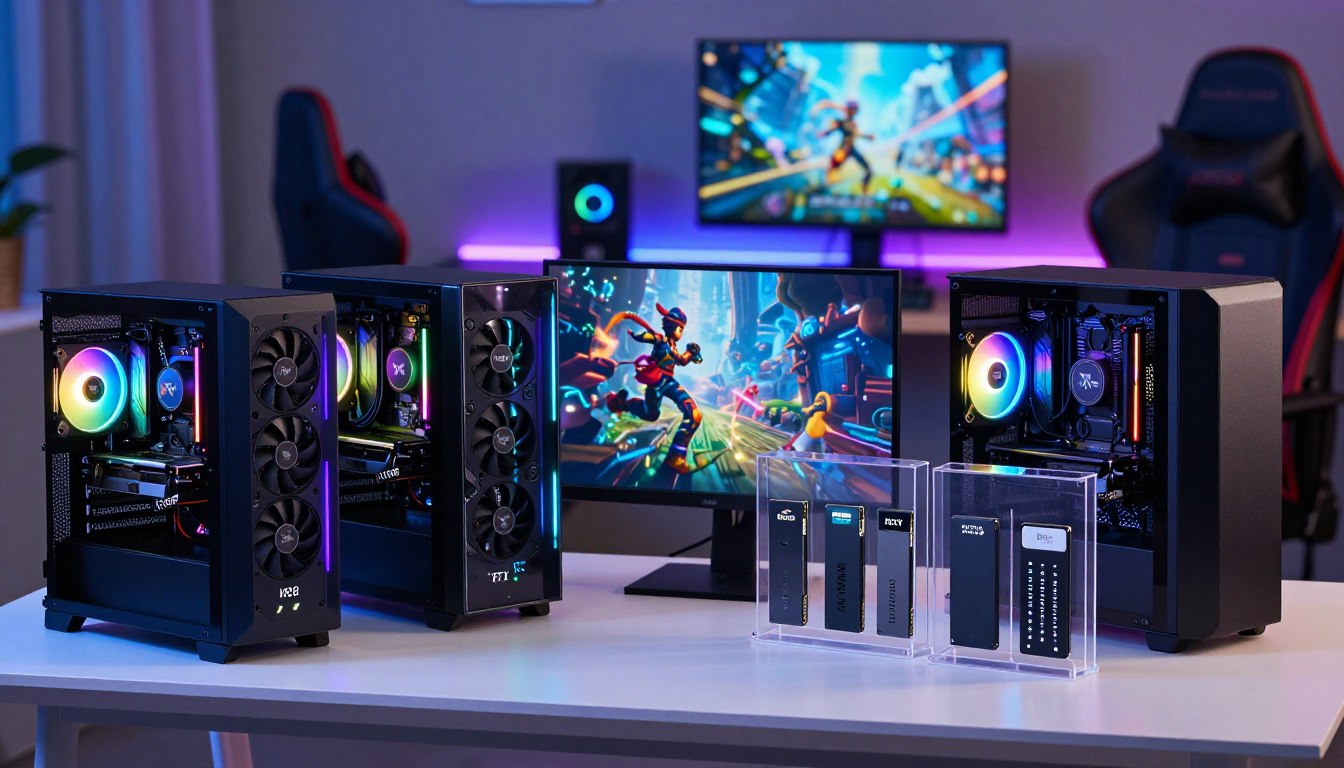
| System | CPU | GPU | RAM and SSD | Listed price in SGD |
|---|---|---|---|---|
| Dreamcore Ghost | Ryzen 5 7500F | RTX 5060 | 16GB RAM, 1TB SSD | $1,750 |
| Dreamcore Lootbox | Ryzen 7 7700 | RTX 5070 | 32GB RAM, 1TB SSD | $2,870 |
| Dreamcore Bucky | Ryzen 7 7700 | RTX 5070 | 32GB RAM, 1TB SSD | $3,000 |
| Dreamcore Titan | Ryzen 7 7800X3D | RTX 5070 Ti | 32GB RAM, 2TB SSD | $4,240 |
The Lootbox and Bucky have the same listed CPU, GPU, memory, and SSD capacity, yet their listed prices differ. The table does not explain every detail behind those prices, so compare the full live specification rather than assuming similar headline parts mean identical builds.
Check the current listing for the exact configuration and full checkout amount before you choose between systems.
These listed configurations illustrate how memory, storage, and GPU combinations differ across offers. A system with more storage may suit a larger installed library, while a different GPU may matter more for demanding games. Check the live product page for the current price and configuration before ordering.
Compare the current specification and total checkout price before choosing between similar listings.
Conclusion
The right gaming PC is the one whose GPU, memory, and storage match the games and work you actually do. Your monitor resolution and workload should set the performance target, then your budget can narrow the configurations that fit.
Shortlist complete systems with exact component models, not vague tier names. Check the seller’s current listing and purchase terms, including the details that affect your chosen configuration. Two well-matched options are easier to compare than a long list of unrelated parts.
Set your resolution and budget, shortlist two complete configurations, and verify their current specifications before ordering.
FAQ
What is the cost of one gaming PC?
A gaming PC in Singapore costs about SGD $1,200-$8,000+, depending on its performance tier and components. Entry systems suit esports and 1080p, while premium desktops target flagship gaming or heavy workloads. Compare complete configurations, since a component-only price does not represent the cost of a working system. Component availability can also affect the listed price.
How much does Windows 10 PC cost?
A Windows 10 PC in Singapore can fall within the indicative SGD $1,200-$8,000+ hardware range, depending on its components and condition. Windows 10 alone does not set the system’s value. An older or used desktop may cost less because of its parts or age, while a more powerful configuration can cost more. Check the hardware and Windows status together.
How much RAM do you need for PC gaming?
16GB is a baseline for PC gaming, while 32GB is the recommended target for enthusiast play and AAA games with high-resolution textures. Games are not the only programs using memory: browsers, chat, and recording tools take some too. If you keep several apps open while playing, 32GB gives you more room for that combination.
Is 32GB RAM overkill for gaming?
No, 32GB is not overkill if you play enthusiast games, use demanding textures, or multitask while gaming. It is more than the 16GB baseline, so a casual player with a simple setup may not need the extra capacity. Memory can also support non-gaming work, including local AI tools and serious creative applications.
Is 500 GB enough for gaming?
A 500GB-class SSD is restrictive for current gaming, though it can work for a small rotation. A 512GB drive is estimated to hold Windows, apps, and about 2-3 large games under common planning assumptions. Large game updates or additional programs can leave less space than expected, so frequent uninstalling may be part of using a drive this size.
How many PC games can 1TB hold?
A 1TB SSD can hold an estimated 5-8 large PC games after allowing about 150GB for Windows and apps. The estimate assumes roughly 100GB per modern AAA game installation. Individual game sizes vary, and some live-service shooters exceed 200GB with all content installed, so the actual count can be lower for a library of unusually large titles.
Will PC run slow if SSD is full?
A nearly full SSD does not necessarily reduce average gaming frame rates, but a full drive can still cause problems. Tests found little change in average frame rates and 1% lows in several games, while some load times increased as drives filled. Drive-specific instability can also occur, and a completely full drive can stop programs from launching.
Is 2TB enough for a gaming PC?
Yes, 2TB is enough for many players and is recommended for most gaming libraries. Under an estimate of about 150GB for Windows and apps plus about 100GB per modern AAA install, it holds roughly 15-18 large games. The actual number depends on game sizes and how many other programs and files you keep on the SSD.
If you want to dig further into how has technology impacted your life? person, read our How Has Technology Impacted Your Life? Person guide.
If you want to dig further into can we define technology? meaning, scope, and, read our Can We Define Technology? Meaning, Scope, and guide.
If you want to dig further into what is public health technology? innovations, read our What Is Public Health Technology? Innovations guide.
